Configuration of Outlook 2013 - 2016
Step 1 Click "More Options" and then "Account Settings"
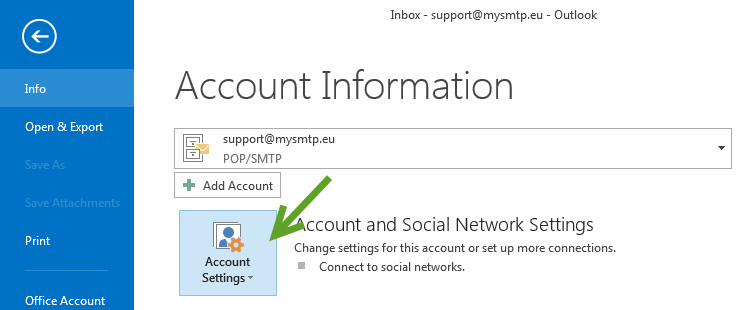
Step 2 Click "New" and then add your e-mail address
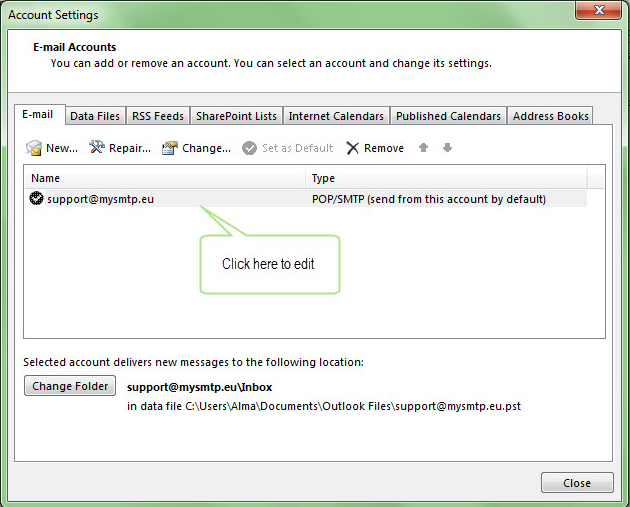
Step 3 Click "Edit ..." and enter "mysmtp.com" in the "Outgoing Server (SMTP)"
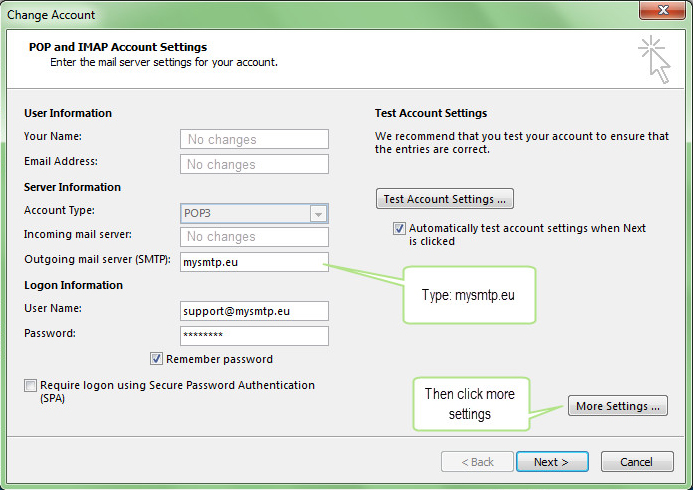
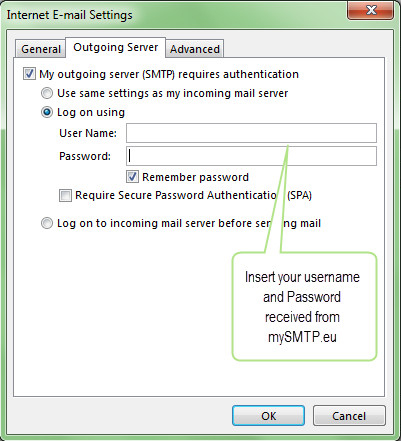
Step 4 Click on "Internet mail", then "Outgoing Server" and tick "My outgoing server (SMTP) requires authentication". Select "Log on using".
Enter your e-mail address from the setup mail in the "Username" and password from the setup mail in the "Password" and tick "Remember password".
Press “OK” to save
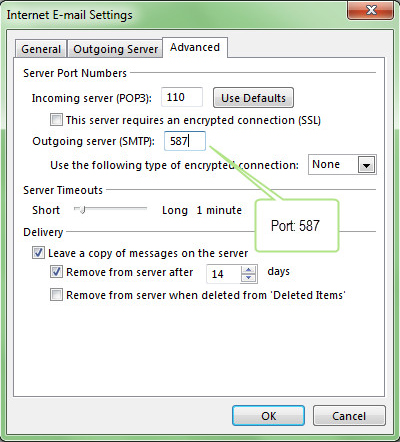
Step 5 Select the "Advanced" tab and type "587" in the "Outgoing Server (SMTP) Port" field
Step 6 Choose “Edit...” again.
and then "Test Account Settings" to test whether you can send e-mails with the new setup.